Tutorial
AetherAI Tutorial
AetherAI is a service that uses AI to create a wide range of assets needed for game production, including images, sprites, and effects. You can create the results you want using text prompts or images, and all features support multiple languages.
Workflow
Workflow
Integrated Workflow
Pixel Sprite Generation (with Background Removal)
01
General Guidance
All features in AetherAI support multilingual prompts. However, if the output is completely different from the prompt or the result you want is not generated well, please try the methods below.
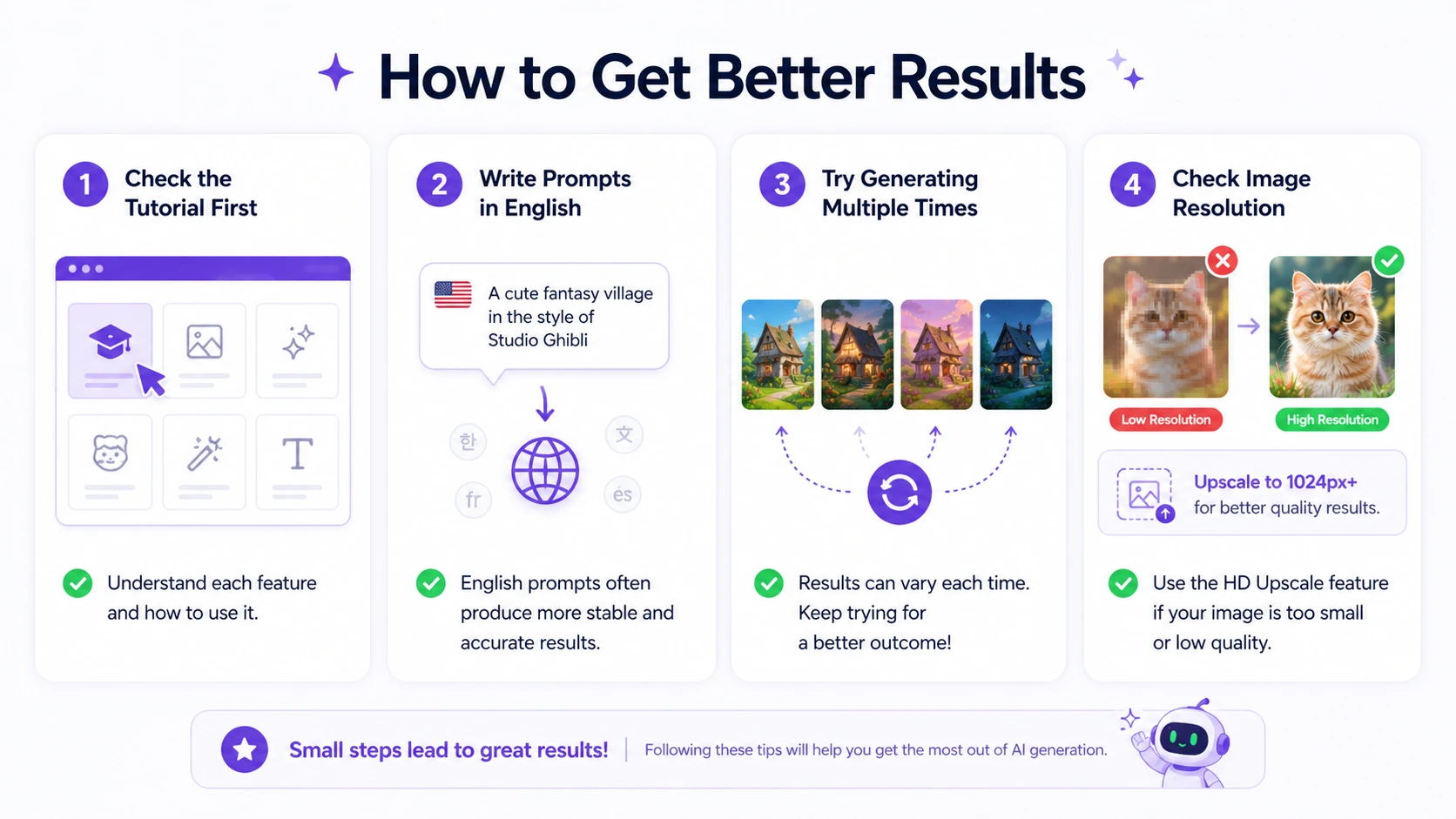
How to get better results
Please check the tutorial for the relevant feature first. Each feature has different recommended image conditions and usage tips.
Try writing the prompt in English. Although multiple languages are supported, some AI models may produce more stable results with English prompts.
Try generating multiple times. AI generation results can vary each time. Even with the same prompt, repeated generation may produce a better result.
Please check the resolution of the attached image. If the image is too small or its resolution is too low, the quality of the result may decrease. In this case, use the high-resolution image upscale feature to make the image 1024px or larger, then try again.
To ensure high-quality generation, none of AetherAI’s generation features support background removal.
02
Things to Check When an Error Occurs
If generation errors keep occurring, please check the following.
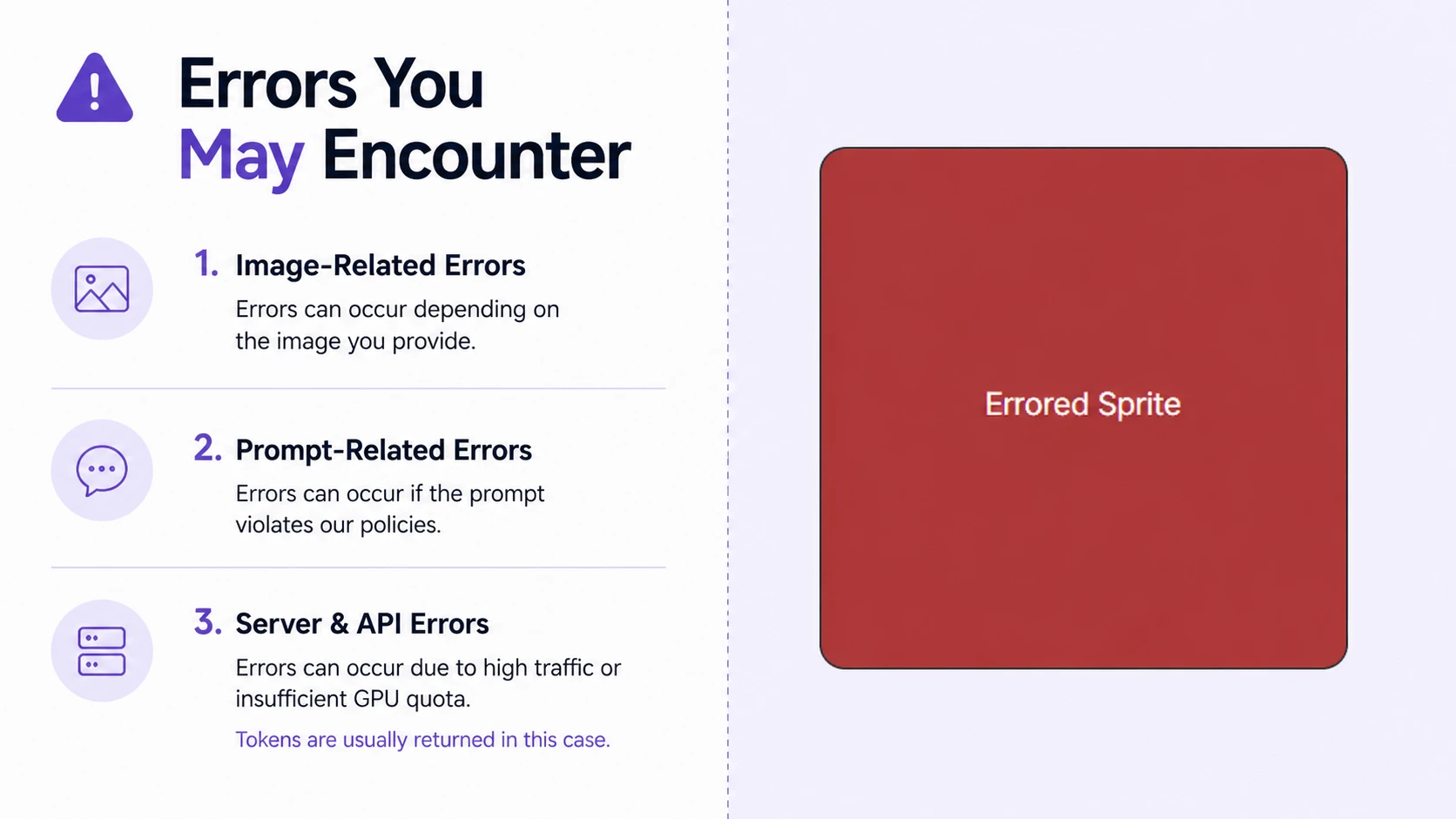
Image-related errors
If the attached image falls under any of the conditions below, an error may occur.
- An image that may be judged as depicting a child
- An image that includes sexual content or elements that violate policy
- A character image that may react sensitively to AI moderation standards
- An image with very low resolution or very small size
In particular, in Sprite Generation V2, the AI may judge CHIBI characters and similar characters as infants or very young children. In this case, modify the image, or if the character is essential, try using Sprite Generation V1, which is more permissive.
Prompt-related errors
Errors may also occur if the prompt includes policy-violating elements. If the problem continues, try simplifying the prompt and making it clearer.
Server and API errors
Generation errors may occur during certain time periods when there are many users or when the API provider has insufficient GPU allocation. In such cases, tokens are generally returned.
If the tokens were not returned properly, please report it through the Bugs & Improvements category.
03
Generating Images
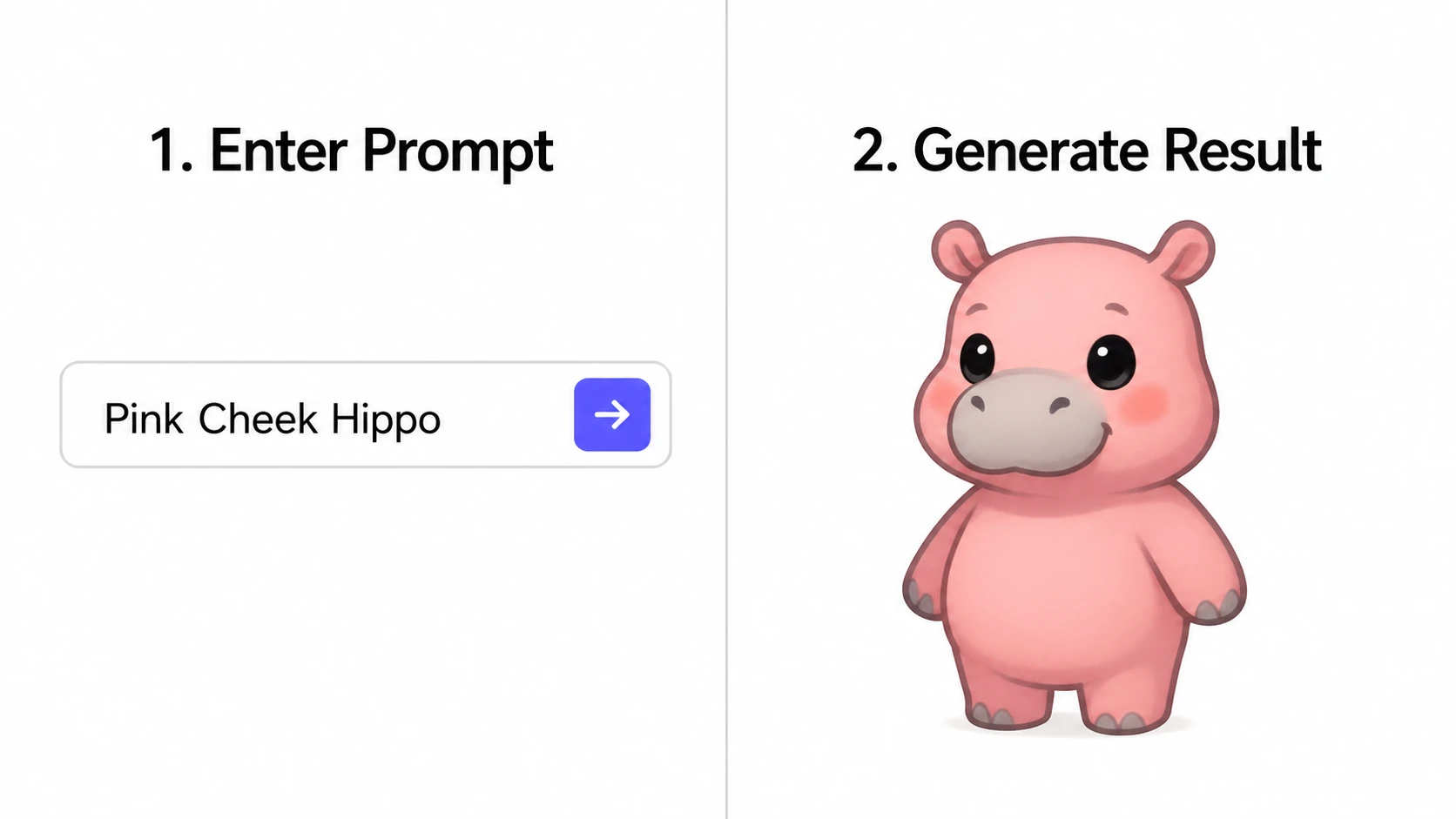
In the image generation feature, you can create game-specialized asset images through various AI model APIs. You can select an available API model from the lower-left corner, and the service supports various up-to-date models such as GPT, Gemini, and Grok.
Supported methods
Image generation can be done in the following two ways.
- Text-based image generation
- Image-based image generation
Prompt Mode
If you click the Prompt Mode button at the lower-right corner of the prompt input box, the default prompt recommendation mode will end, and you can generate an image immediately based on the prompt entered by the user.
Checking generation results
Completed images can be checked on the dashboard on the right. Generated images can be downloaded or deleted.
You can also check and download previously generated images again through the History > Image Generation History menu.
04
Editing Images
In the image editing category, you can modify or process already created images, character images, sprite sheets, and more.

Improve Quality
Converts the image into a high-quality image while preserving its form.
Supported resolutions are as follows.
- 1K: 1024px
- 2K: 2048px
- 4K: 4096px
If you upscale a low-resolution image and then use it in other features, you can get better results.
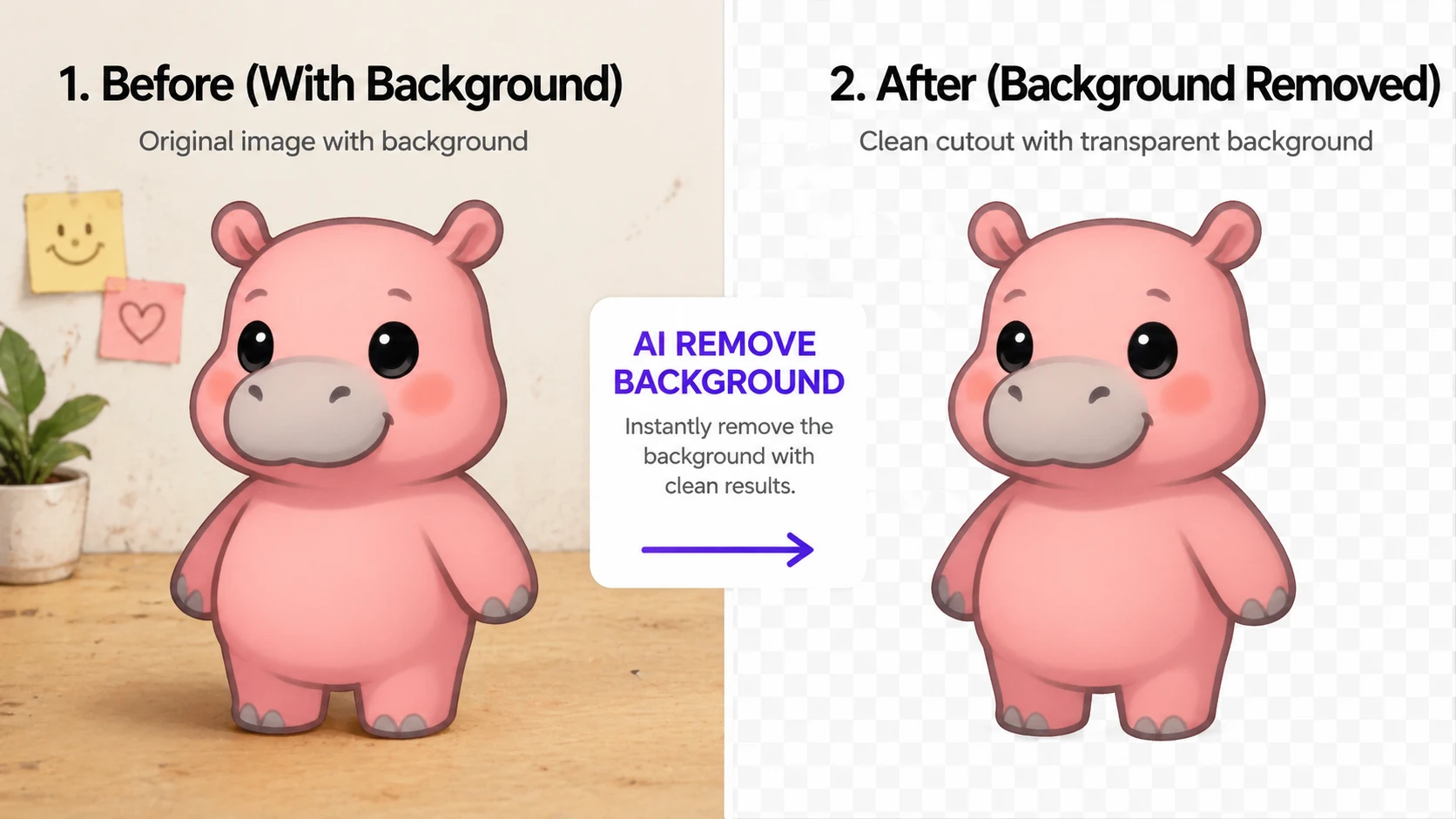
Remove Background
AI automatically removes the background from the image.
However, if the image is complex or requires delicate work such as a sprite sheet, the background may not be removed perfectly in one attempt. In such cases, it is recommended to divide the image into layers or proceed together with manual touch-up.

Redraw
Based on an existing image, you can modify only the parts you want while preserving the overall form.
Examples:
- Change hairstyle
- Change outfit color
- Add decorations
- Modify a specific area
- Change the character’s direction
- Modify the pose to fit animation work
If you request a major change such as the pose or composition of the image, the AI may also change parts that should not be changed. In this case, please include conditions like the following in the prompt.
Examples:
- Do not change the facial expression
- Do not change the image style
- Keep the original pose
- Do not change the background
- Keep the character proportions
- Keep the outfit design

Pixelate
Converts the image into a pixel art format.
In particular, if you process a pixel art image generated by AI once more through the Pixelate feature, it becomes easier to organize it into a form suitable for actual retouching.

Sprite Editing
In the sprite editing feature, you can process a single image or a sprite sheet into a form suitable for sprite production.
Supported functions are as follows.
- Flip a single image horizontally
- Add background padding
- Edit sprite sheet frames
- Work on multiple sprite sheets at the same time
- Change frame order
- Download separated frames as individual images
- Automatically split frames after uploading a GIF
If you upload a sprite sheet, you can freely edit the frames to create a new sprite sheet. You can also change the frame order by drag-and-drop in the frame order area at the bottom.
If you upload a GIF image, the frames are automatically split and can be edited in the same way.
05
Generating Sprites
In the sprite generation category, you can upload images to create animations. The generated results can be received as GIF files and sprite sheets.

Sprite generation supports V1 and V2.
V1
V1 generates sprites based on a single image.
Features:
- Supports 25 to 169 frames
- Only one image can be uploaded
- Pixel art feature can be turned ON/OFF
- Tends to be more permissive than V2
V2
V2 can create more natural animations by using a start frame and an end frame.
Features:
- Supports 49 to 121 frames
- Two images can be uploaded in total: a start frame and an end frame
- Single-image upload is also possible
- Errors may occur more frequently when there are many users
- AI moderation may become stricter with CHIBI characters or complex prompts
If errors keep occurring with a specific character, try improving the image or using V1.
Image conditions suitable for sprite generation
To get better results, it is recommended to meet the conditions below.
Use a solid-color background White backgrounds in particular produce the best quality.
Use an image where the character is facing right If the character is facing left, use the horizontal flip feature in the image editing category to change it to face right.
Use a single object Images containing multiple characters or complex backgrounds may produce unstable results.
Secure enough empty space There should be enough space around the character to reduce cropping during animation generation.
Please prepare the image in a pose suitable for the animation you want. Before generating a sprite, make sure the image has a direction and pose suitable for the motion you want. If the direction or pose of the image does not match the motion, the result may come out awkward.
Examples:
- Requesting a side attack motion with a front-facing character: Not recommended
- Modify a front-facing character into a side-facing character using the 4-3 Redraw feature
- Requesting a side attack motion with a side-facing character image: Recommended
Likewise, if you provide an image that has already been made closer to the pose or direction of the desired motion, the AI can generate a better result.
Please be sure to also check the tips and examples in the sprite generation category. Since the desired result may not come out in one try, please also refer to the improvement methods in the General Guidance section.
06
Generating Effects
In the effect generation feature, you can create VFX skill effect images based on text or images.

V1
V1 supports quality-based options and generates a fixed 16 frames.
Supported resolutions:
- 1K
- 2K
- 4K
V2
V2 allows you to select the number of frames you want to generate the effect.
Supported frame counts:
- 4 frames
- 9 frames
- 16 frames
Quality options
There are two quality options for effect generation.
Standard option
Can quickly generate effects of average quality.
Pro option
The AI repeatedly refines the image to generate more elaborate, higher-quality results.
07
Sprite Preview
In the sprite preview feature, you can upload a sprite sheet and immediately check the animation result.
How to use
- Upload a sprite sheet.
- Enter the rows and columns to match the sprite sheet.
- Adjust the frame speed.
- Set the options.
- Check the animation result in the preview on the right.
- Download the result as a GIF file.
Sprite preview is useful when you want to quickly check how the generated sprite sheet actually moves in a real game.
08
Checklist for Better Results
Checking the following before generation can improve the quality of the result.
Image checklist
- Is the image size 1024px or larger?
- Is the character fully visible without being cut off?
- Is the background simple?
- Is there only one character or object?
- Is the image for sprite generation facing right?
- Is there enough empty space around the image?
- Does the image have a pose and direction suitable for the animation motion you want?
- If needed, did you first correct the image using the Redraw feature?
Prompt checklist
- Did you write the desired result simply and clearly?
- Did you also write which parts should not be changed?
- Did you avoid overly complex or ambiguous expressions?
- If the result is unstable, did you try again with an English prompt?
Checklist when an error occurs
- Could the image be judged as violating policy?
- Could the CHIBI character be recognized as a child?
- Does the prompt contain sensitive expressions?
- Is the image resolution too low?
- If errors keep occurring in V2, did you try V1?
09
Frequently Occurring Problems and Solutions
The image I want is not coming out well
Try writing the prompt in a shorter and clearer way. Or it is recommended to switch to an English prompt and generate again.
The character is being distorted strangely
Increase the resolution of the image and add conditions in the prompt for what should be preserved.
Examples:
- Keep the original face
- Keep the original pose
- Change only the outfit color
- Do not change the background
- Do not change the style
The sprite for the motion I want is not coming out well
Please check whether the uploaded image is suitable for the animation motion you want.
For example, if you want to create a side attack motion, a side-facing character image is more suitable than a front-facing character image. If needed, use the 4-3 Redraw feature to first adjust the character’s direction or pose, then proceed with sprite generation.
The sprite does not move naturally
Please check whether you used an image suitable for sprite generation. A solid-color background, a right-facing character, a single object, and enough empty space are important.
Errors keep occurring in V2
V2 may produce errors due to an increase in users or stricter AI moderation standards. Try improving the image or using V1.
Background removal is not clean
Complex images or sprite sheets may not have their backgrounds removed perfectly in one attempt. It is recommended to divide the image into layers or proceed together with manual touch-up.
10
Recommended Use Examples by Feature
Generating Images
Use this when creating core assets such as game characters, backgrounds, items, monsters, and illustrations.
Editing Images
Use this when improving the quality of an image you already made, removing the background, changing colors, pixelating, and so on.
Generating Sprites
Use this when you want to turn a character or object into a moving animation.
Generating Effects
Use this when creating VFX images such as skills, magic, explosions, and attack effects.
Sprite Preview
Use this when you want to check the result by making the sprite sheet move like a GIF.